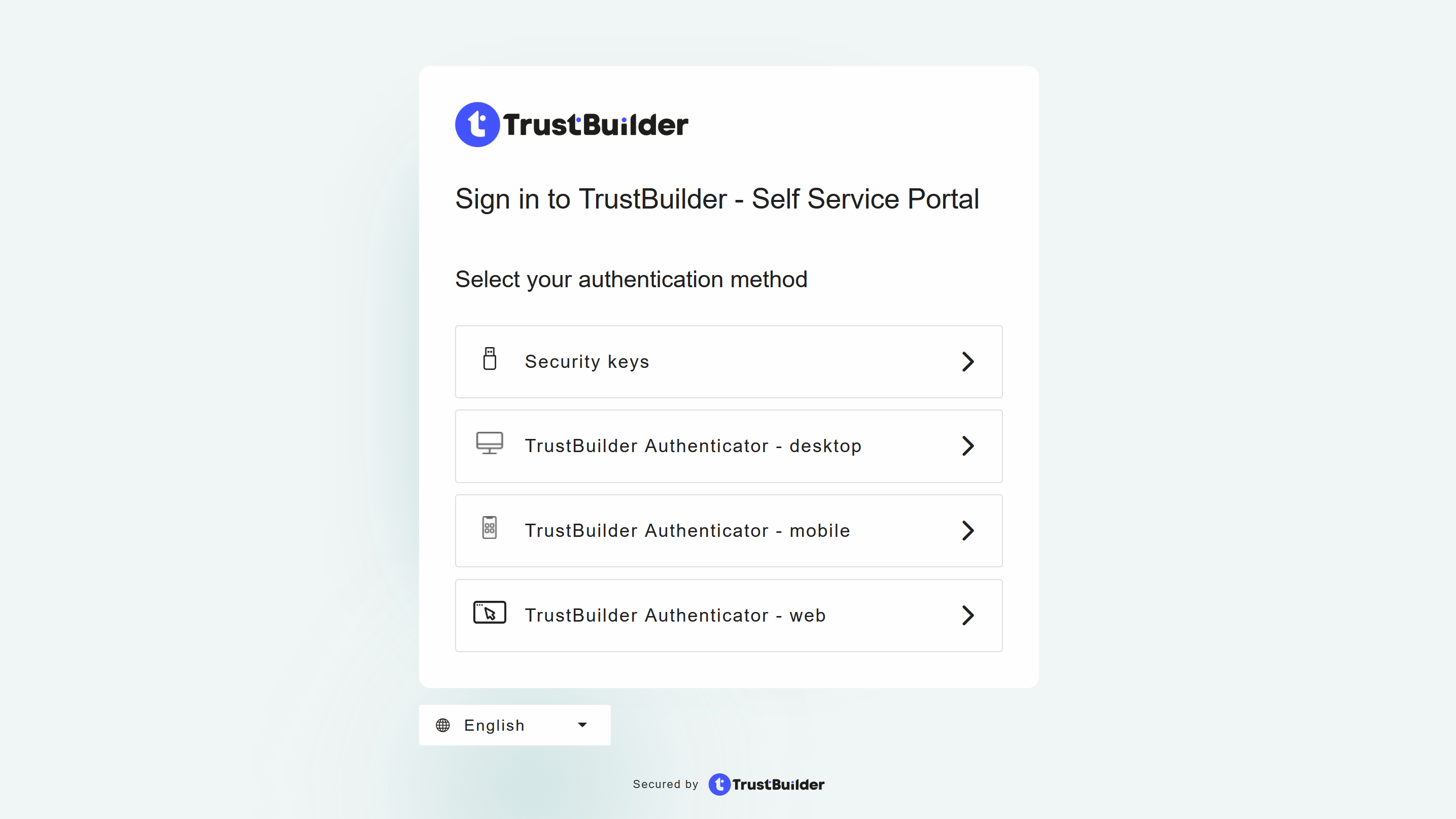
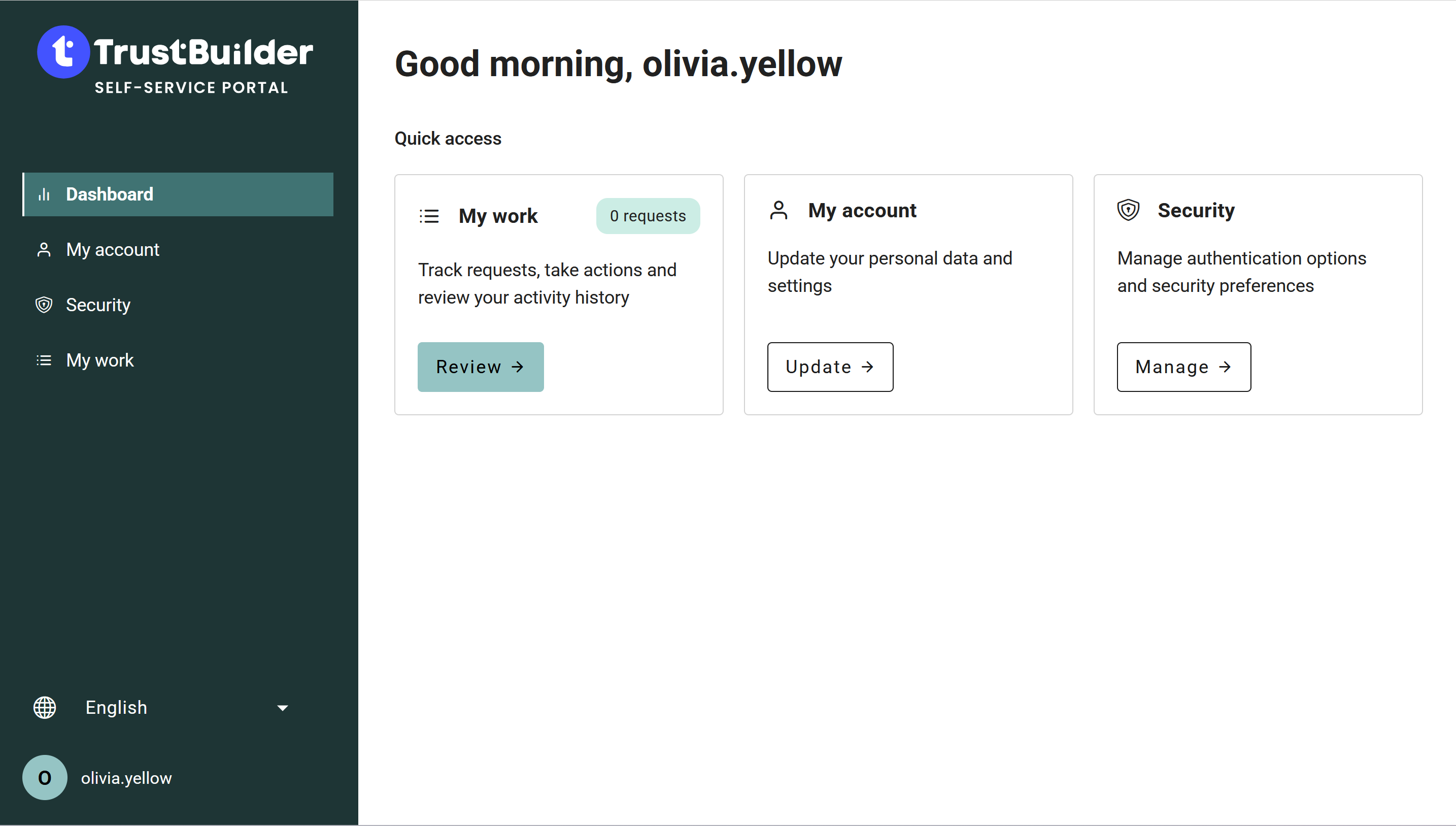
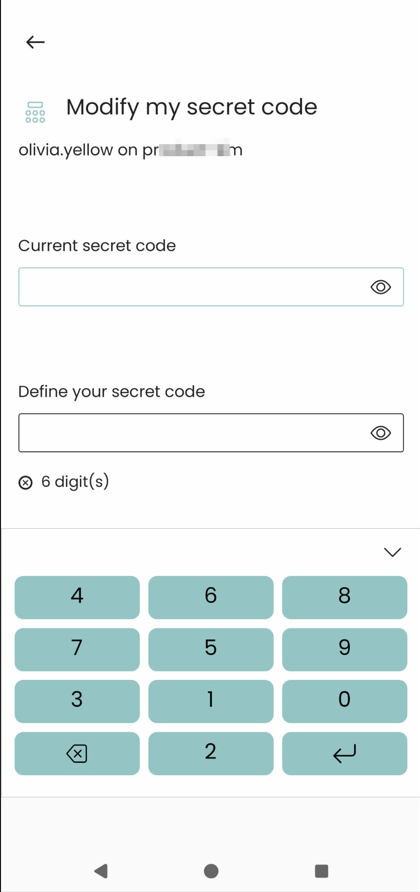
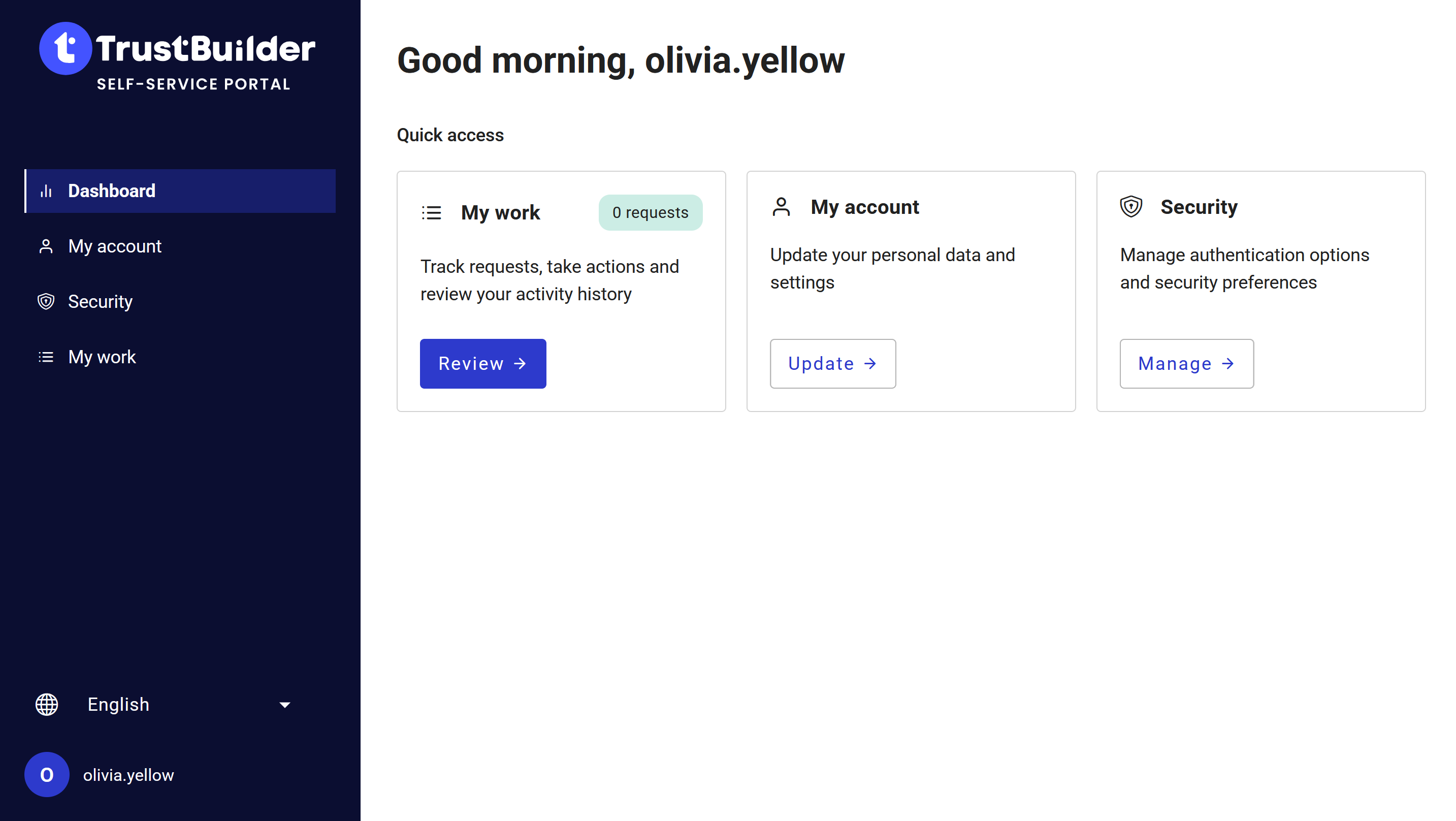
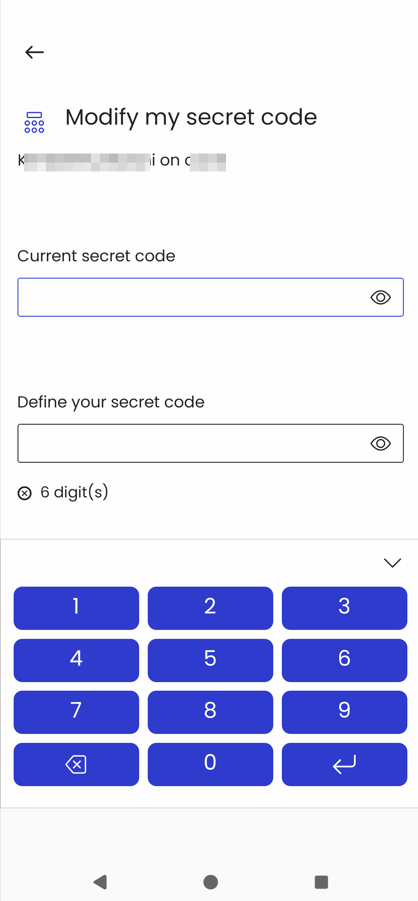
The theme defines how TrustBuilder Safe-T interfaces look to end users by applying branding elements such as logos and colors.
Trustbuilder Authenticator supports theme customization starting from version 7.11.
Customize theme
Theme customization is done at the tenant level and affects all supported user interfaces for that tenant.
To customize the tenant theme from the Admin Portal:
-
Go to Settings > Theme.
-
In the Brand Identity section, select logos to use:
-
For Horizontal logo, choose:
-
Default logo (TrustBuilder logo), or
-
Custom logo to upload your own file.
Minimum size: 256 × 128 px (512 px width recommended)
Max file size: 720 KB
Formats: PNG, JPG, SVG
Recommended ratio: 2:1 to 4:1
Transparent background recommended
-
-
For Square logo (used for favicons, mobile apps, profile avatars), select:
-
Default logo (TrustBuilder icon), or
-
Custom logo to upload your own square format logo.
Minimum size: 256 × 128 px (512 px width recommended)
Max file size: 720 KB
Formats: PNG, JPG, SVG
Recommended ratio: 2:1 to 4:1
Transparent background recommended
-
-
-
In the Color system section, customize the colors:
-
Primary color: Select the color for primary buttons, icons and avatars.
The default value is#4353ff. -
Page background: Select the background color for pages.
The default value is#FFFFFF(white). -
Login background: Select the background color for login pages (web pages only).
The default value is#F6F7FE.
-
-
In the Theme Preview section, review how your customizations will appear.
The preview displays the key branded elements (logos, button styles and background colors).
Make sure your primary color is clearly visible against your background colors.
-
Click Apply theme to save your changes.
-
Click Apply to confirm your choice.
Changes are visible to end users after their next login.
DEFAULT
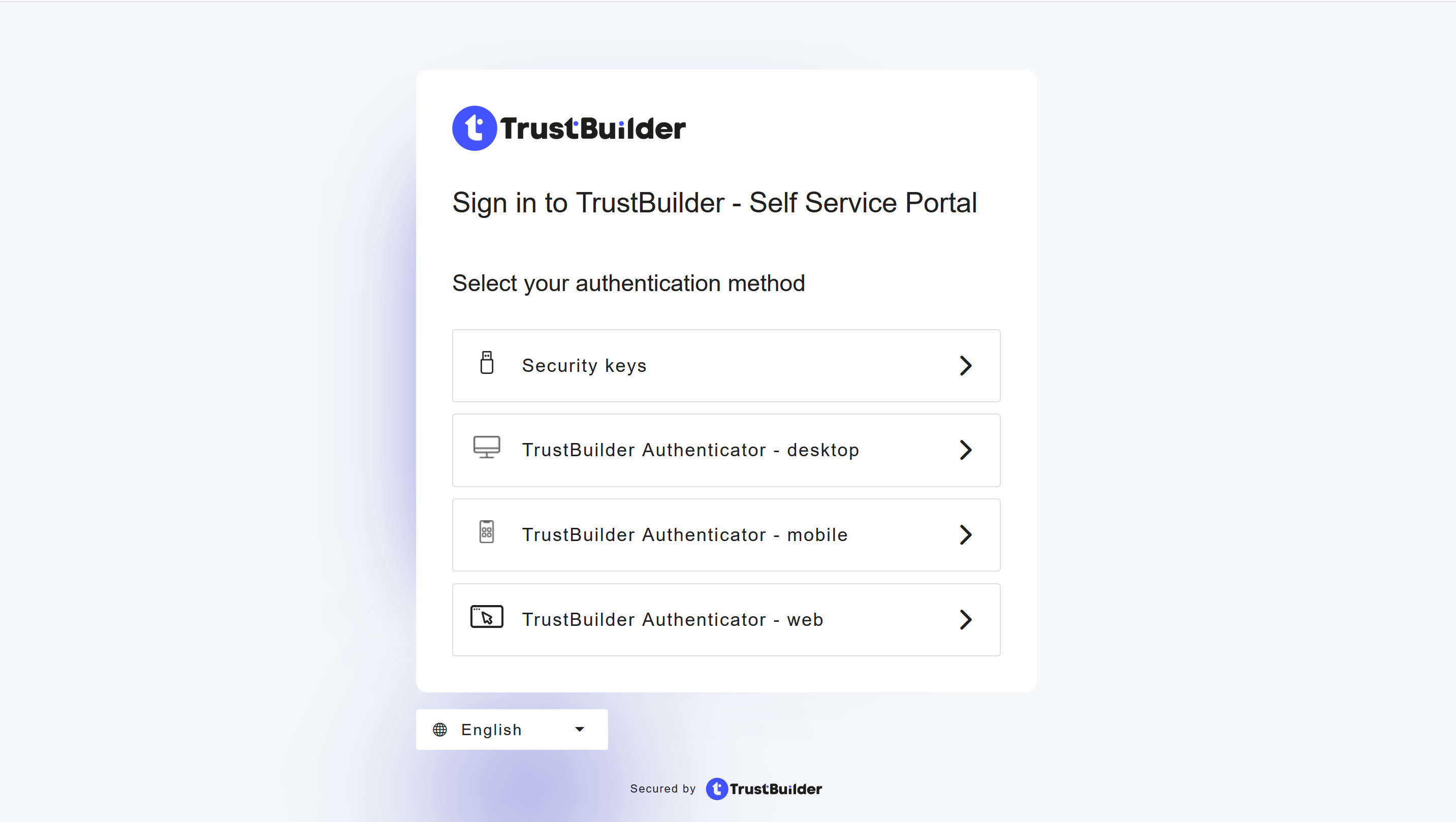
CUSTOM EXAMPLE